Integration Campaign can be implemented in a number of fields. To read in detail you can visit Integration Campaign
To prepare and use Integration campaigns a user has to complete the following steps.
- Create Contact List
- Create recordings
- Create campaign
- Reporting
For permission and campaign administration please check Integration campaign administration at the end.
1. Create Contact List
While creating contact lists for Integration campaigns, the user has to fill fields like other normal contacts except the custom1 field, where the user will enter offer id. This is applicable for both methods manual contact creation or importing contacts list via CSV file.
Note: For the offer id, the user may use any contact field. but in this case, remember to make it consistent across the whole contact group and also update Integration data accordingly while creating an Integration campaign.
2. Create recordings
The user needs to record and upload into ICTBroadcast the following recordings for each offer.
- Offer introduction
- Offer details
Besides offer recordings user also has to provide the general recording required by the Integration campaign as mentioned below:
- Offer end message (main menu), will prompt the prospect to enter 1 for subscription or 2 for details
- Detailed end message (sub-menu), will prompt the prospect to enter 1 for subscription or 2 to hangup
- A confirmation message will be played on a successful subscription.
- Thank you! message
- Recording for invalid choice i.e you pressed an invalid button
3. Create Integration Campaign
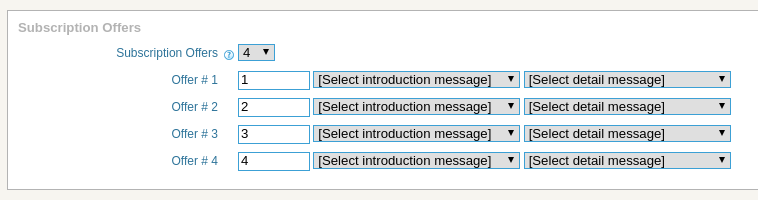
Visit campaign management, click on Create new Campaign and then select Integration Campaign from the campaign list. Now fill the campaign form as any other campaign and fill additional subscription-related fields as follows.
Subscription Offers
- Subscription Offers
The number of offers that users need to support under this campaign. - Offer
Along with offer ids, an introductory voice message and a detailed voice message are required for each offer, choose messages for both.
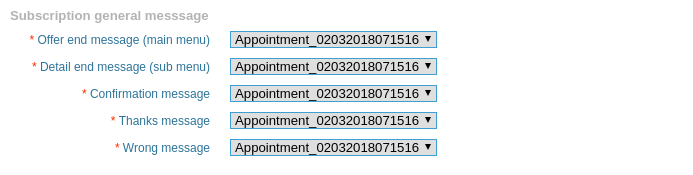
Subscription general message
- Offer end message This is an instruction message to ask the user to press 1 or 2 if he/she wants to subscribe or want to listen to more detail.
- Detail end message
The message will be played after playing offer detail. asking the user to press 1 to subscribe. - Confirmation message
The message will be played when the user takes the offer. - Thanks, message
Thank you / Goodbye message at the end of the campaign. - Wrong message
The message will be played if the customer chooses the wrong option.
4. Reports
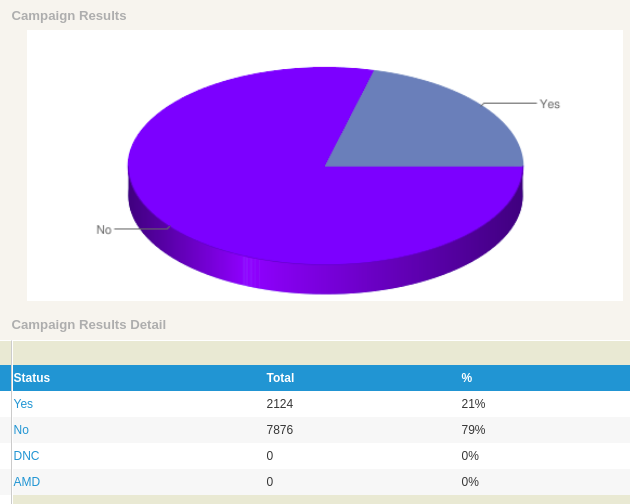
After the campaign has been completed, users can click on Results under Campaign Management for the selected Integration campaign. in the result screen, there will be a report for Yes and No options.
Users can click yes, or no results to find and export corresponding contacts.
5. Integration campaign administration
Admin can change following Integration campaign-related settings
Max subscription offer
Visit system configuration and then-campaign tab, their admin can change maximum allowed offers, for Integration campaign.
Integration Campaign Permissions
Admin can assign / unassign Integration campaign permission from resources to a particular user or role from user management or role management respectively.
For Integrating ICT Broadcast with another software Integration API is available
Voice-based Surveys & Polls through Automated Phone call Software