
An SMS broadcast sends one text message to a large list of contacts at the same time. With SMS broadcast software like ICTBroadcast, you upload your contacts, write a message, and launch a campaign that reaches hundreds or thousands of phones in minutes. This guide walks you through the whole process step by step.
Texting still works because people read it. According to Morgan Stanley, 91% of U.S. adults keep a mobile device within reach around the clock, so a well-timed SMS lands where your customers already are. That is why businesses lean on bulk texting for promotions, reminders, and transactional alerts.
What You Need Before You Start an SMS Broadcast
Sending bulk messages by hand isn’t practical. You need software that handles the list, the message, and the delivery. ICTBroadcast lets you send hundreds to thousands of SMS messages from a single campaign, and the setup comes down to a few simple steps.
1. Prepare Your Contact List
Start with a clean contact list. You can create separate contact groups to target specific cities, provinces, or countries, and import numbers in bulk. ICTBroadcast also lets you load a Do Not Call (DNC) list, so any number you add there is skipped automatically. That keeps you compliant and protects your sender reputation.
2. Write Your Message
Write the message you want to send. You can personalize it with custom tokens and variables, which get replaced with each contact’s real values at send time, so the same campaign greets everyone by name. ICTBroadcast supports both transactional and promotional SMS, so you can run order alerts and marketing offers from the same system.
Create an SMS Message in ICTBroadcast
- Open the navigation menu and select Messages.
- Click the SMS submenu.
- Click the New Text button on the top right.
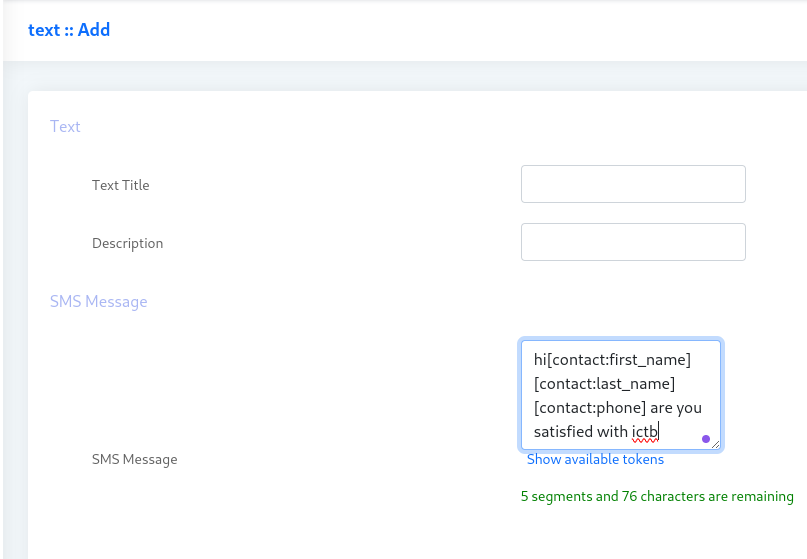
- Enter a title and description for the message.
- Type your SMS text in the message box. You can drop in custom tokens here for personalization.

How to Create an SMS Campaign
- Open the navigation menu and select Campaigns.
- Click Campaign Management.
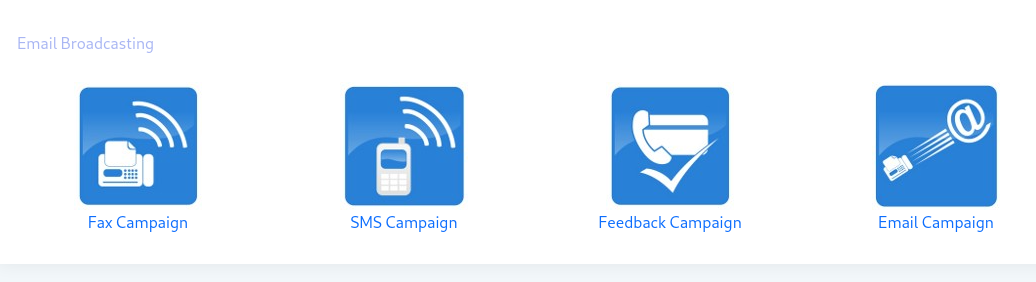
- Click Add New on the top right, then choose SMS Campaign.
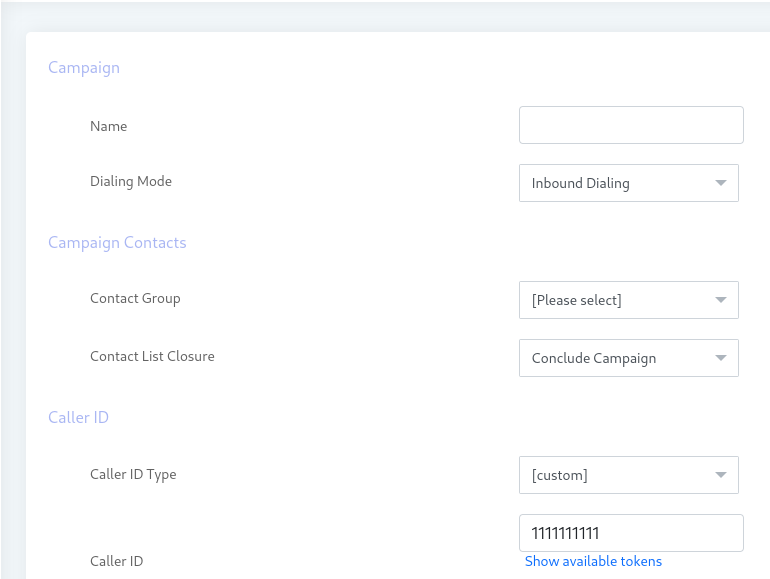
- Enter the campaign details, such as the campaign name.
- Select your contact group and caller ID.
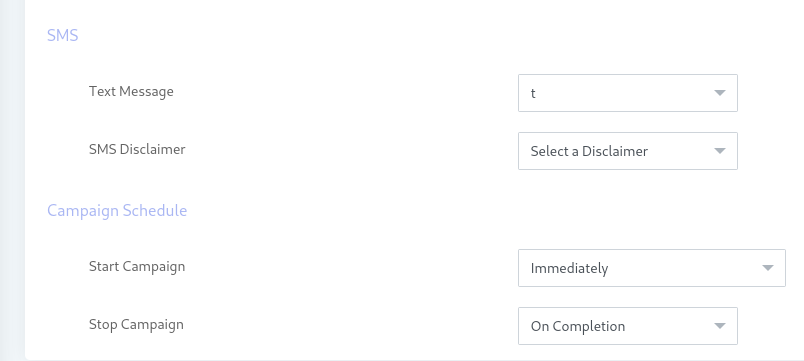
- Pick your SMS text and disclaimer, then save the campaign.
Track Delivery With SMS Reports
Every SMS campaign returns a delivery report. Each time a message reaches a number, the report records it, so you can see exactly which messages went through and which didn’t. That feedback helps you clean your list and measure how each broadcast performed.
Frequently Asked Questions
What is an SMS broadcast?
An SMS broadcast is a single text message sent to many contacts at once. Instead of texting people one at a time, you load a contact list, write one message, and the software delivers it to everyone in the group.
How many messages can I send in one SMS broadcast?
ICTBroadcast can send hundreds to thousands of SMS messages from one campaign. The practical limit depends on your SMS gateway and the throughput your provider allows.
Can I personalize bulk SMS messages?
Yes. You can use custom tokens and variables that get replaced with each contact’s details at send time, so a single campaign can greet every recipient by name or include account-specific information.
What is the difference between transactional and promotional SMS?
Transactional SMS covers alerts and confirmations a customer expects, like order updates. Promotional SMS covers marketing offers. ICTBroadcast supports both from the same campaign tool.
How do I avoid texting numbers that opted out?
Add opted-out numbers to your Do Not Call (DNC) list. ICTBroadcast skips any number on the DNC list automatically, which keeps your campaigns compliant.
Related guides: Personalize messages with custom tokens and SMS broadcasting with the ICTBroadcast autodialer.
SMS Broadcasting Terms You Should Know
Before you scale a campaign past a few hundred numbers, it helps to speak the same language as your gateway provider and your compliance team. Here are the terms that come up most often.
- SMS broadcast
- Sending one message to a large list of recipients in a single scheduled campaign, instead of typing each text by hand.
- Bulk SMS gateway (SMPP)
- The connection that hands your messages to the mobile carriers. ICTBroadcast talks to providers over the SMPP protocol, so you can plug in any compliant gateway and route by cost or country.
- Sender ID
- The name or number recipients see as the sender. It can be a short code, a long number, or an alphanumeric brand name where carriers allow it.
- Delivery receipt (DLR)
- The status the carrier sends back for each message: delivered, failed, or expired. ICTBroadcast records DLRs so your reports reflect real delivery, not just messages sent.
- Throughput and throttling
- How many messages per second your gateway accepts. Throttling spaces out sends so you stay inside that limit and avoid being flagged as spam.
- Opt-out (STOP)
- A reply that removes a recipient from future campaigns. Honoring opt-outs keeps you compliant and protects your sender reputation.
- Two-way SMS
- A campaign that can receive replies, so recipients can confirm, vote, or unsubscribe, and you can act on what comes back.
How SMS Broadcasting Works in ICTBroadcast
ICTBroadcast is a multi-tenant, white-label platform. Its voice campaigns run on an Asterisk telephony engine, while SMS campaigns ride a separate path: your message goes out through SMPP gateway connections to the carriers, and delivery receipts flow back into the same reporting dashboard. That split lets you run voice and text outreach from one place without mixing the two delivery channels.
Throttled Delivery and Opt-Out Handling
A good broadcast does not just fire everything at once. ICTBroadcast meters your send rate to match the gateway throughput, and it watches for replies. When someone texts STOP, the platform adds them to your do-not-contact list so they drop out of every future campaign automatically.
Keep reading:
SMS autodialer overview · VoIP auto dialer for high-volume campaigns · Full feature list
Ready to run your first throttled, compliant SMS broadcast? Contact our team