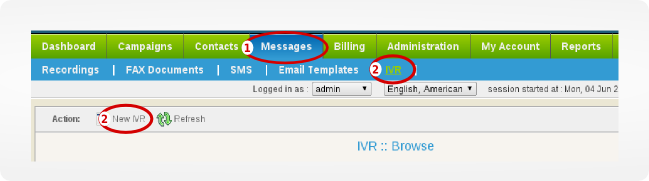
First Of All Navigate to Messages => IVR => New IVR
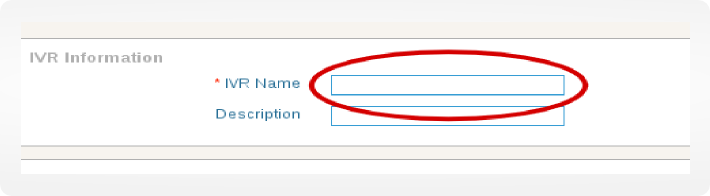
Enter Your IVR Name
How to use Custom Token In Text to Speech (TTS) Application in IVR?
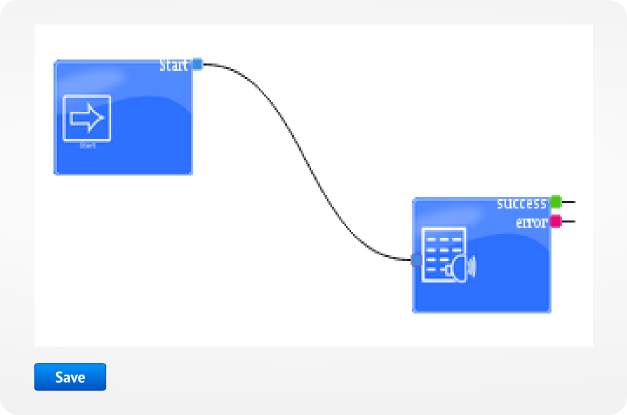
1. Create New IVR => Drag and drop TTS Application to Drawing Area.
2. In the popup window, write the custom token that you want to play, and then click Apply to save.
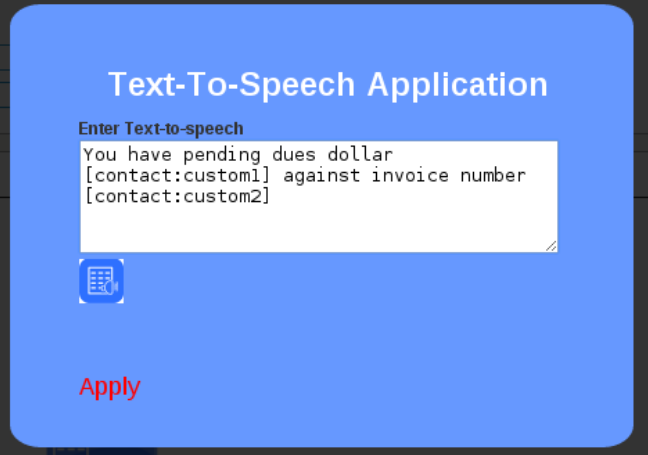
3. Link start Application with the TTS Application by dragging and dropping the “Start Application” link on the “TTS Application”. Click the Save button on-page menu to save this IVR.
How to use the custom token in SayAlpha Application in IVR?
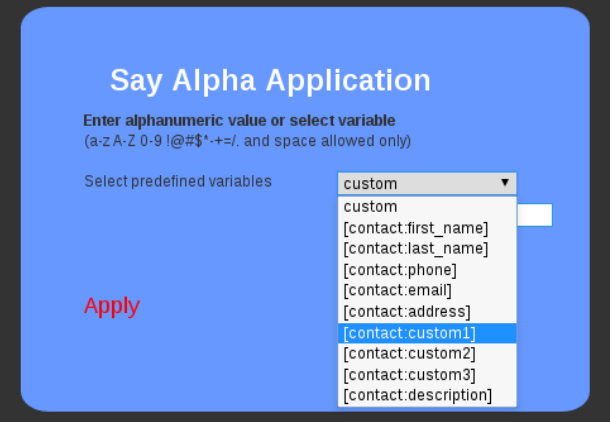
1. Create New IVR => Drag and drop SayAlpha Application to Drawing Area.
2. From the popup window, the user can select a custom token whose value wants to play. Users can also select a custom field from the drop-down menu. This will allow the user to write alphanumeric values in the text box. Click Apply to save.
How to use the custom token in the SayDigit Application in IVR?
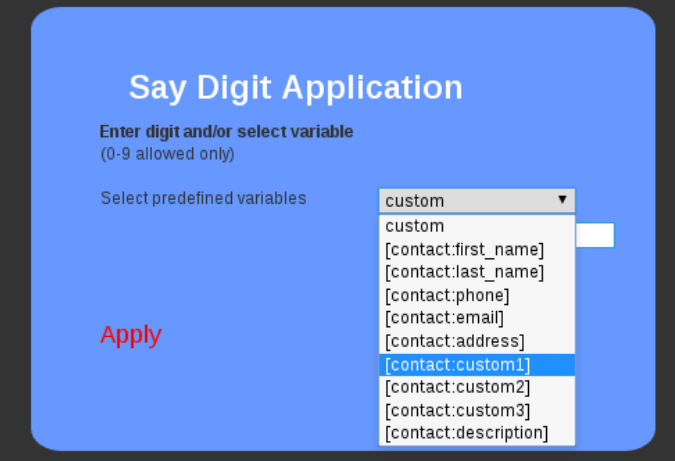
1. Create New IVR => Drag and drop SayNumber Application to Drawing Area.
2. From the popup window, the user selects a custom token whose value wants to play. Users can also select the custom field option from the drop-down menu. This will allow the user to write only digits ( 0 – 9 ) in the text box. Click Apply to save.
How to use custom token In SayNumber Application in IVR?
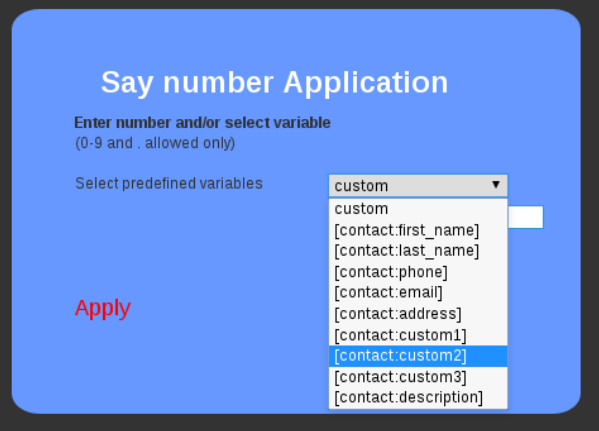
1. Create New IVR => Drag and drop SayNumber Application to Drawing Area.
2. From the popup window, the user selects a custom token whose value wants to play. Users can also select a custom field from the drop-down menu. This will allow the user to write the only numbers (0 – 9 and ” . “) in the text box. Click Apply to save.
How to use the custom token in SayDate Application in IVR?
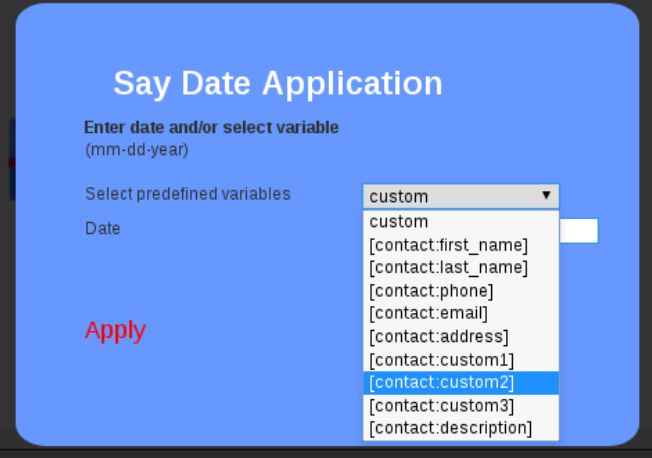
1. Create New IVR => Drag and drop SayDate Application to Drawing Area.
2. From the popup window, the user selects a custom token whose value wants to play. Users can also select a custom field from the drop-down menu. This will allow the user to Select time ( mm:dd:year ) from the given field below. Click Apply to save.
How to use the custom token in SayTime Application in IVR?
1. Create New IVR => Drag and drop SayTime Application to Drawing Area.
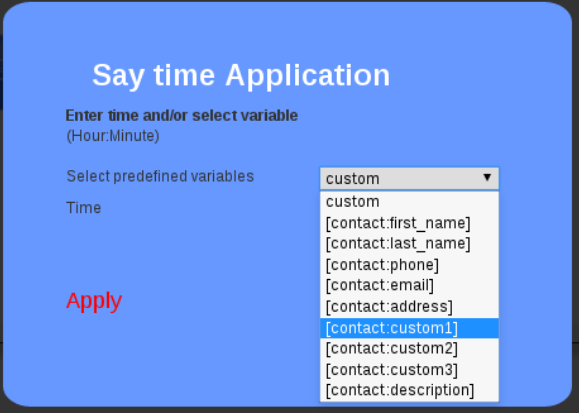
2. From the popup window, the user selects a custom token whose value wants to play. Users can also select custom from the drop-down menu. This will allow the user to Select time ( Hour: Minute ) from the given field below. Click Apply to save.