
IVR Designer Node Reference
ICTBroadcast’s drag-and-drop IVR Designer lets you build any call flow visually — no coding required. Every node connects on a canvas, and each node type has a specific job. This page documents all 14 node types available in the IVR Designer so you know exactly what you can build.
What Is the IVR Designer?
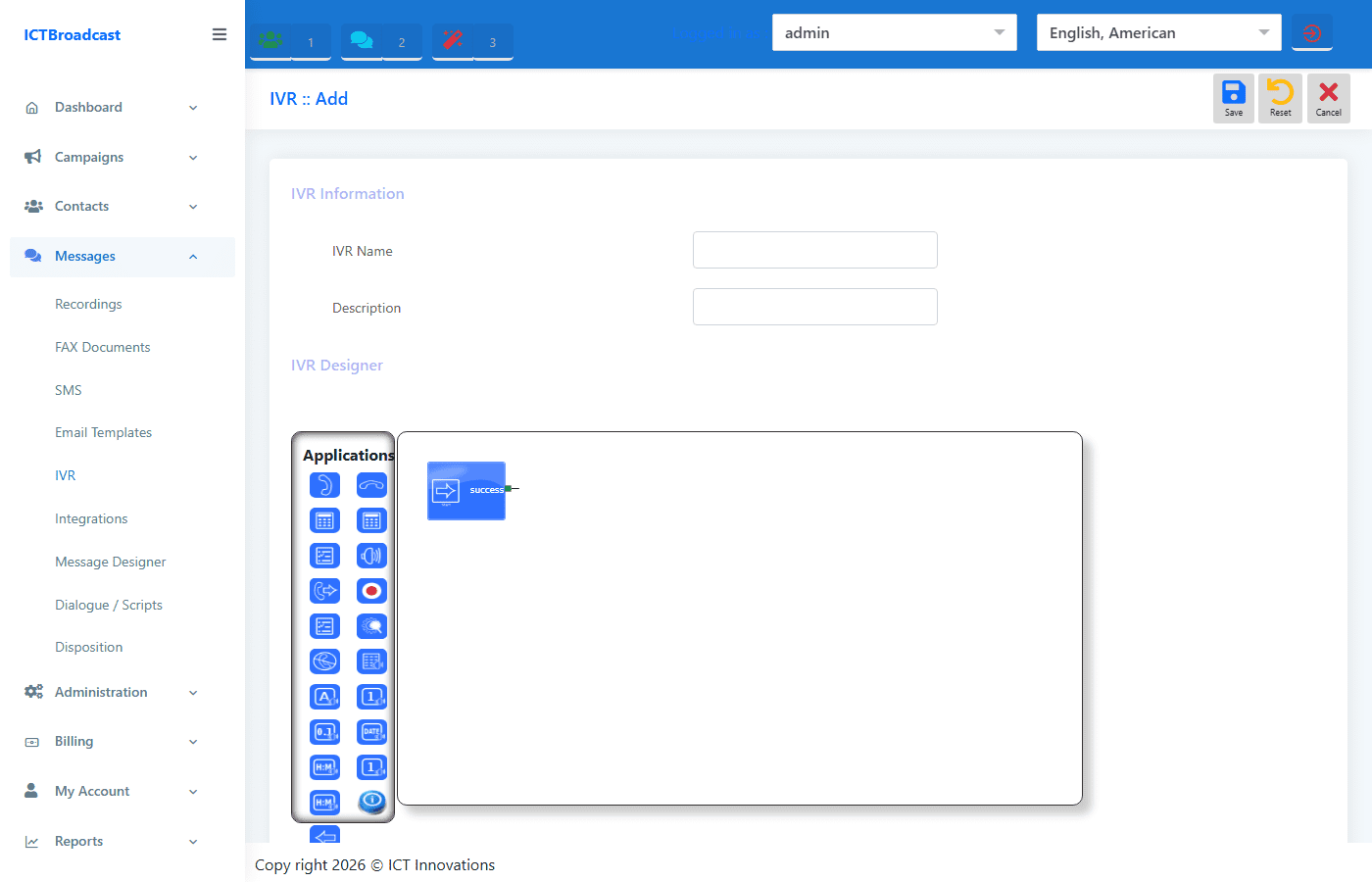
The IVR Designer is the visual call-flow builder inside ICTBroadcast. You open it at Messages → IVR → Add New. A blank canvas appears with an Applications toolbar on the left. Drag any node onto the canvas, connect it with a line to the next node, configure its settings, and save. ICTBroadcast executes the flow in real time when a call reaches that IVR.
You can use IVR flows in inbound campaigns (when a caller rings your DID), in outbound broadcasting (after the call connects), or as a reusable sub-flow called from another IVR.
Call Answer
The Call Answer node is the mandatory start node for every IVR flow. It answers the incoming or connected call and passes control to the next node in the flow. Every IVR must begin with this node.
Location: IVR Designer → Applications → Call Answer
Call Hangup
The Call Hangup node terminates the call. Place it at the end of any branch in your flow that should disconnect the caller — for example, after playing a “thank you” message or after a DNC registration.
Location: IVR Designer → Applications → Call Hangup
Get Input
The Get Input node waits for the caller to press one or more digits on their keypad. You configure how many digits to collect, the timeout, and a prompt to play while waiting. The collected input is stored as a variable you can use in downstream nodes such as Condition or Integration API.
Use case: Capture an account number, PIN, survey answer, or menu selection.
Location: IVR Designer → Applications → Get Input


Condition
The Condition node branches the call flow based on the value of a contact field variable or the input collected by a Get Input node. You define one or more if/else rules, and the call routes to a different branch depending on which condition is true.
Use case: Route VIP customers differently, skip steps for opted-in contacts, branch by language preference stored in a custom field.
Location: IVR Designer → Applications → Condition
Time Condition
The Time Condition node routes calls differently based on the current day of the week and time of day. You configure one or more weekday/time-window rules. Calls inside the window follow one branch; calls outside follow another.
Use case: Play a “we are closed” message on weekends, route to voicemail after business hours, present a holiday greeting in December.
Location: IVR Designer → Applications → Time Condition

Play Audio
The Play Audio node plays a pre-recorded WAV or GSM file to the caller. Select any recording from your Messages → Recordings library. The node waits until playback finishes before moving to the next node.
Use case: Play a welcome greeting, an on-hold message, a terms-and-conditions disclosure, or any pre-recorded announcement.
Location: IVR Designer → Applications → Play Audio
Play TTS (Text-to-Speech)
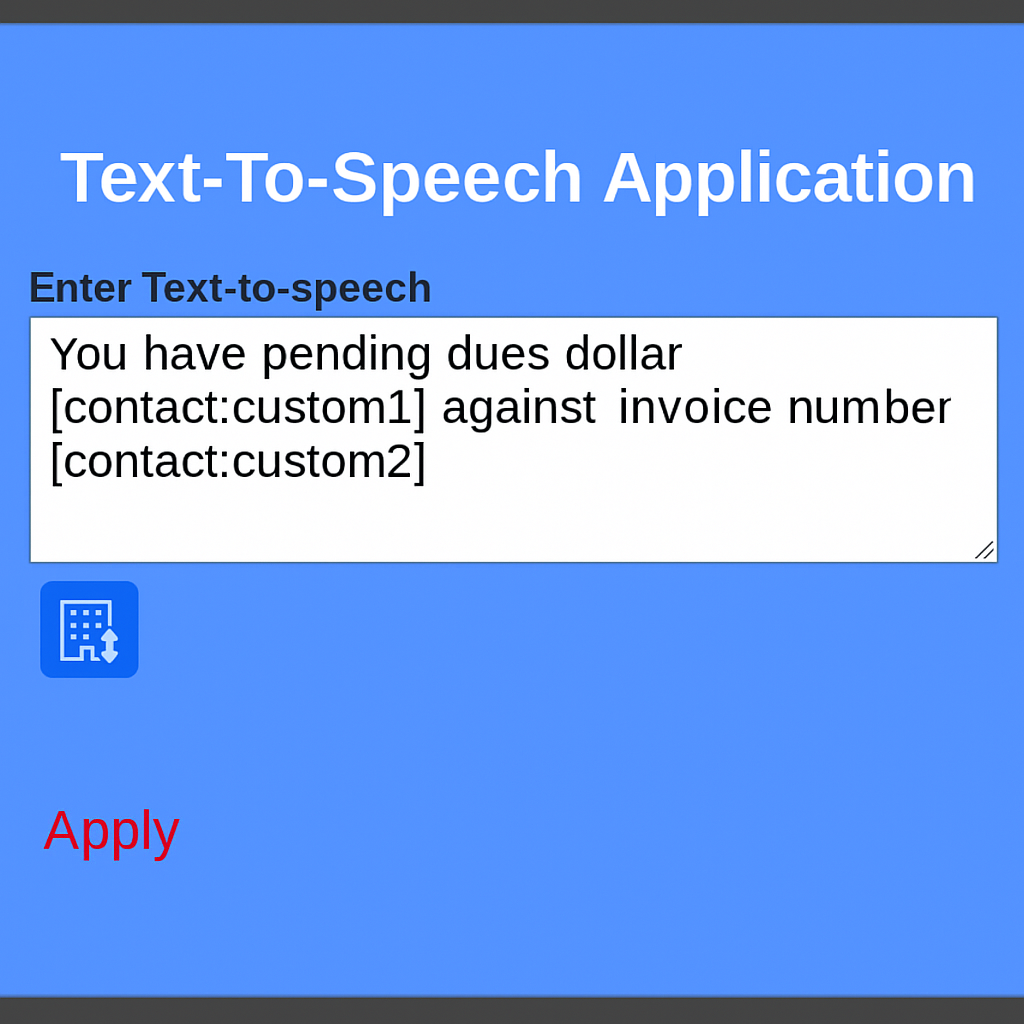
The Play TTS node synthesises speech from text at call time using the configured TTS engine (Festival CLI or Google Cloud TTS). You can embed contact field tokens in the text so the caller hears their own name, account balance, or appointment time read back dynamically.
Use case: “Hello John, your appointment is confirmed for Tuesday at 3pm.” No pre-recorded audio required.
Location: IVR Designer → Applications → Play Text-to-Speech (TTS)
Options Menu
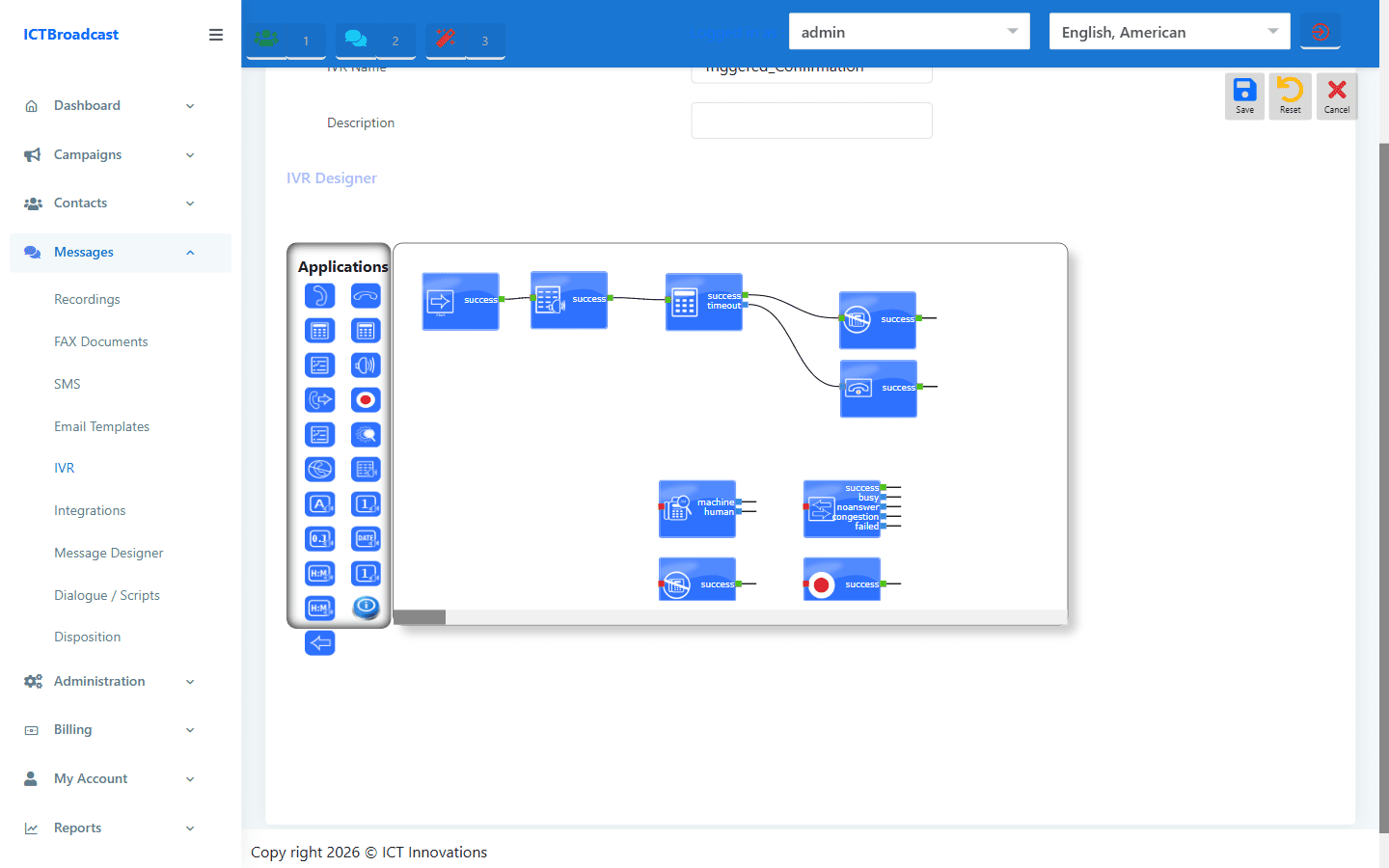
The Options Menu node combines audio playback with keypad input to create a classic phone menu (“Press 1 for Sales, Press 2 for Support…”). Each digit maps to a separate outbound branch. You configure the prompt audio, the valid key range, a timeout, and a maximum number of retries before the default branch fires.
Location: IVR Designer → Applications → Options Menu
Call Transfer
The Call Transfer node forwards the caller to an agent extension, a skill group queue, or an external phone number. The transfer happens mid-flow without returning to the IVR. If the target is a skill group, ICTBroadcast queues the call and routes it to the next available qualified agent.
Use case: Transfer callers who pressed “1 for Sales” to the Sales skill group; transfer after-hours calls to a voicemail number.
Location: IVR Designer → Applications → Call Transfer
Call Record
The Call Record node starts recording the call from that point in the flow. You can place it after consent is collected (e.g., “This call may be recorded. Press 1 to continue”) so you only record the portion of the call where recording is permitted. Recordings appear in the Reports → Call Recording report.
Location: IVR Designer → Applications → Call Record
AMD — Answering Machine Detection
ICTBroadcast supports AMD at two levels: campaign-wide (detects machines before connecting to an agent) and at the IVR node level. The AMD node runs machine detection mid-flow and branches the call based on the result — Human, Answering Machine, or Unknown. This lets you play a different message to machines (e.g., a voicemail drop) while routing humans to a live agent or a different IVR path.
Location: IVR Designer → Applications → Answering Machine Detection (AMD)
DNC — Do Not Call (Opt-Out Inside IVR)
The DNC node adds the caller’s number to the Do Not Call list from within the IVR flow. Place it on the “Press 9 to opt out” branch of an Options Menu node so callers can self-service their opt-out without any agent involvement. The number is immediately added to the campaign’s DNC group and will not be dialled again.
Location: IVR Designer → Applications → Do Not Call (DNC)
Integration API
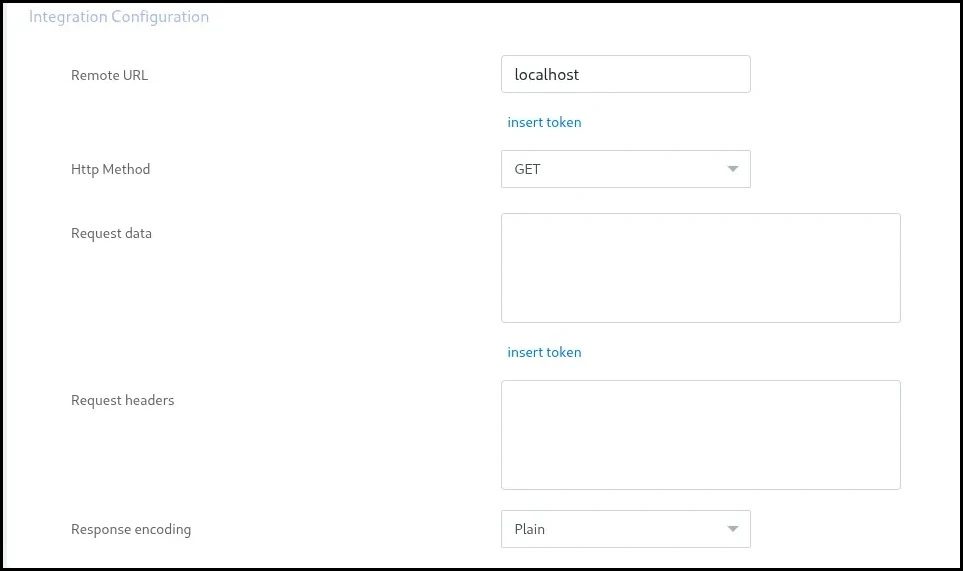
The Integration API node calls an external REST API endpoint mid-flow and uses the response to continue the call. You configure the endpoint URL, HTTP method, headers, and a payload that can include contact field tokens. The response can be stored as a variable for use in downstream Condition nodes.
Use case: Look up a caller’s account status in your CRM in real time, verify an account PIN against your database, or trigger a webhook when the caller reaches a specific point in the flow.
Location: IVR Designer → Applications → Integration API

Utility Nodes — Say, Send DTMF, Add Delay, Set Caller ID
- Say Alpha / Say Digit / Say Number / Say Date / Say Time — read back a variable value in the appropriate spoken format (spell it letter by letter, digit by digit, as a cardinal number, as a date, or as a time). Useful for reading back PINs, reference numbers, or appointment times from contact fields.
- Send DTMF — inject DTMF tones into the call (useful when connecting to third-party IVR systems that require keypad navigation).
- Add Delay — pause the flow for a configurable number of seconds before proceeding to the next node. Useful for giving audio time to complete or for pacing multi-step flows.
- Set Caller ID — override the outbound caller ID at a specific point in the flow, for example to present a local area code when transferring to a regional team.
Frequently Asked Questions
Do I need to use all 14 nodes?
No. You can build a working IVR with just Call Answer, Play Audio, and Call Hangup. Use only the nodes your call flow requires.
Can I reuse an IVR flow in multiple campaigns?
Yes. You save the IVR and select it when creating an inbound campaign or broadcast campaign. The same IVR can be assigned to multiple campaigns.
Can nodes pass data between them?
Yes. Get Input and Integration API nodes store results as variables. Condition nodes can read those variables plus any contact field to decide which branch to follow.
Is coding required to use the Integration API node?
No. You configure the endpoint URL, HTTP method, and payload using a form inside the node settings panel. The response is parsed automatically.
Where do I find IVR reports?
Call outcomes from IVR flows appear in Reports → CDR and Reports → Overview. Call recordings triggered by a Call Record node appear in Reports → Call Recording.