
ICTBroadcast Service Provider Supervisor Guide
1) Overview
The Supervisor role in ICTBroadcast SP Edition is designed for team leaders and call center managers who need real-time visibility into agent activity and campaign performance without full administrative access. Supervisors can monitor live calls, view agent status, access evaluation tools, and generate reports for the agents and users assigned to their tenant.
2) Supervisor Role Capabilities
- Monitor all active campaigns and live call statistics in real time
- View agent login status, current call status, login age, and break reasons (Away, Lunch, Meeting)
- Force logout agents who are unresponsive or logged in incorrectly
- Access CDR, Queue Statistics, Live Statistics, Agent Statistics, and Disposition Statistics reports
- Create and manage evaluation forms for agent performance review
- Review completed evaluations and Evaluation Summary across all assigned agents
3) Logging In as a Supervisor
Supervisors log in using the same web portal URL as other users. The system detects your role and presents the supervisor view automatically.
Steps:
- Open your browser and go to your ICTBroadcast portal URL
- Enter your username and password provided by your tenant admin
- Click Login — the dashboard appears showing campaigns and agent activity scoped to your users
4) Live Monitoring
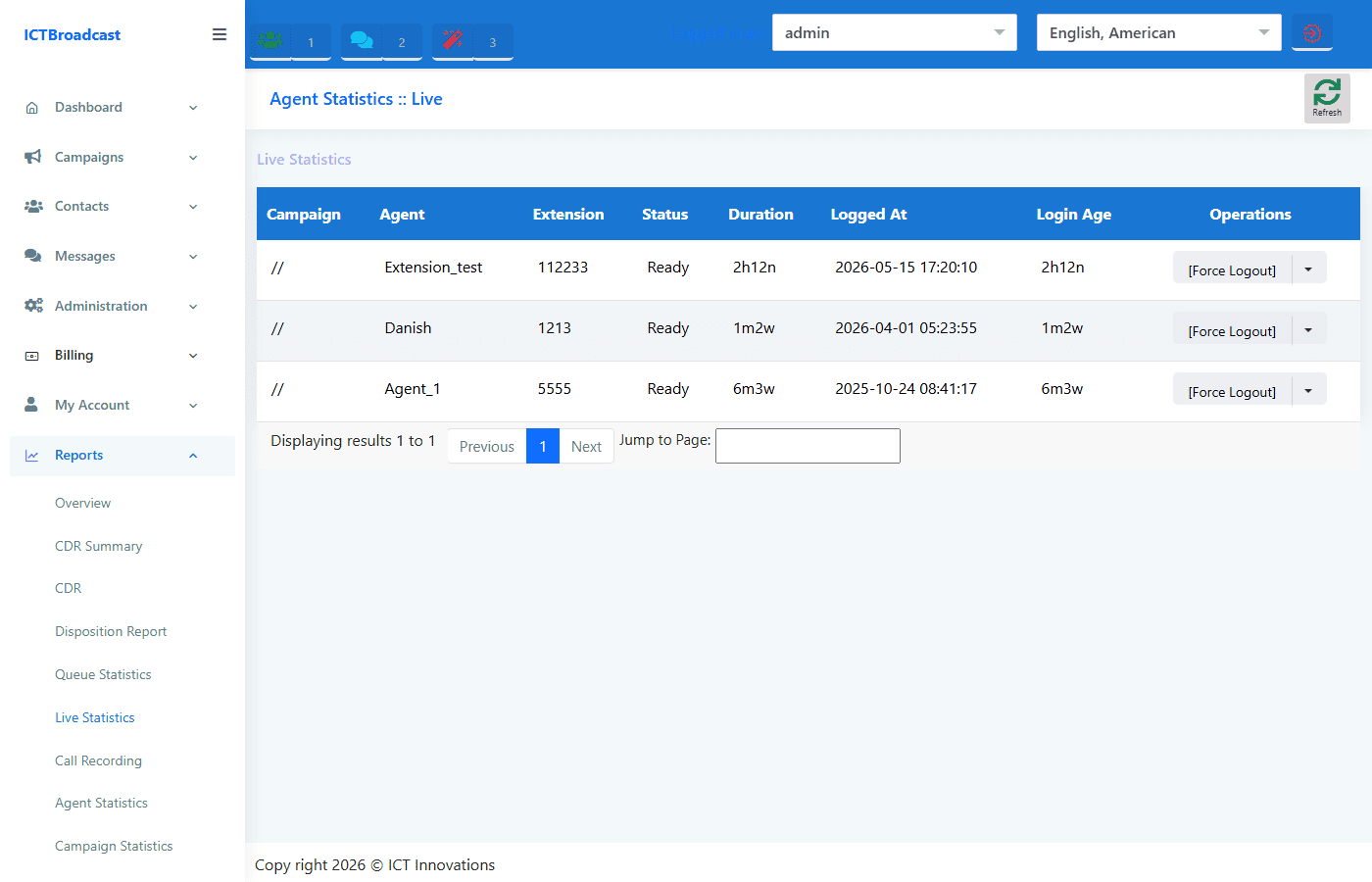
Agent Statistics :: Live
The Agent Statistics :: Live page shows a real-time table of all logged-in agents under your supervision. For each agent you can see:
- Campaign: The campaign the agent is currently assigned to
- Agent: Agent name
- Extension: The agent’s extension number
- Status: Ready, Not Ready, In Call, or Break Reason (Away / Lunch / Meeting)
- Duration: Duration of the current call or current status
- Logged At: The date and time the agent logged in this session
- Login Age: Total time the agent has been logged in during this session
Go to Reports from the main menu and click Live Statistics from the sub-menu.
Force Logout
If an agent has walked away without logging out or is unresponsive, click the Force Logout button next to their name in the Agent Statistics :: Live view. This immediately ends their session and frees their extension for reassignment.
5) Reports
I) CDR Summary
CDR Summary (Reports → CDR Summary) provides a chart view of campaign call outcomes — answered, unanswered, failed, and not called — for all campaigns under your supervision.
II) CDR
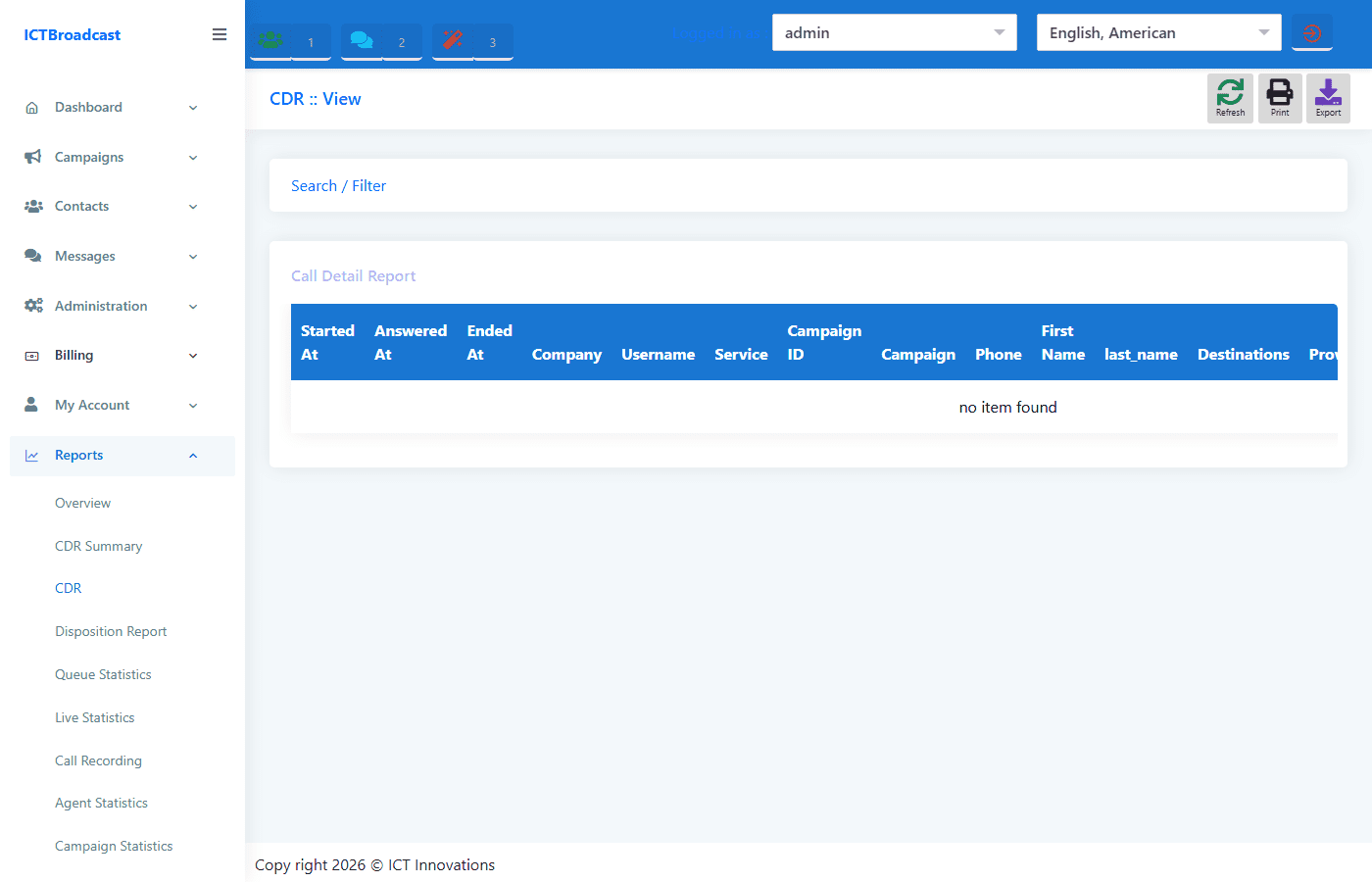
The CDR report (Reports → CDR) provides a detailed log of every call placed. Each record shows the campaign, contact phone number, call start time, duration, cost, and disposition. Use it to audit specific calls or investigate call quality issues.
III) Agent Statistics
Agent Statistics (Reports → Agent Statistics) shows the overall session summary for each agent: login time, logout time, total talk time, and time to answer calls. Filter by agent name and date range to review specific performance periods.
IV) Disposition Statistics
Disposition Statistics (Reports → Disposition Statistics) shows a breakdown of call outcomes for all agents under your supervision. It includes:
- Total sales calls per agent
- Total break time and average break duration per agent
- Count of calls per disposition type (Answered, No Answer, Busy, DNC, Sale, etc.)
Use this report to identify agents with excessive break time, compare sales conversion rates across your team, and review disposition distributions over any date range.
V) Report Builder
The Report Builder (Reports → Report Builder) lets you create custom CDR reports by selecting specific data fields, applying date and campaign filters, and grouping results by agent, extension, or disposition. Export results as CSV for payroll, billing reconciliation, or management reporting.
6) Agent Evaluation
I) Creating an Evaluation Form
Build a structured scoring form for agent evaluations.
Steps:
- Go to Agent Evaluation from the main menu
- Click Evaluation Form from the sub-menu
- Click New Form, enter a title and description, add scoring criteria
- Click Save to make the form available for evaluations
II) Evaluating an Agent
Steps:
- Go to Agent Evaluation → Agent Evaluation
- Select the agent and the specific call record to evaluate
- Select the evaluation form to use
- Score each criterion and add comments or notes
- Click Submit to record the evaluation
III) Evaluation Report
The Evaluation Report (Agent Evaluation → Evaluation Report) lists all completed evaluations. Each entry shows the agent name, extension, call duration, score, and reviewer comments. Filter by agent or date range and export as CSV or print directly.
IV) Evaluation Details
Evaluation Details (Agent Evaluation → Evaluation Details) shows the call-level breakdown of every flagged evaluation. Use it to review specific interactions that were scored below a threshold.
V) Evaluation Summary
The Evaluation Summary (Agent Evaluation → Evaluation Summary) gives a consolidated view of all completed evaluations. For each agent you see their overall score, the number of evaluations submitted, average scores per category, and a performance trend over the selected date range. Use it to identify top performers, flag agents who need coaching, and compare scores across the team from a single screen.