
Voice broadcasting software sends a pre-recorded voice message to a large contact list at the same time. It dials every number automatically and plays your message the moment someone answers. Compared with email, fax, or SMS, a voice call engages the person directly, so your message is harder to ignore.
How Voice Broadcasting Software Works
The system dials a contact list, and when the recipient answers, it plays your pre-recorded audio. A capable platform also detects answering machines (AMD). When a machine picks up, you can play a different message or hang up, so you don’t waste calls or leave half-played messages.
Grow Your Business With Voice Broadcasting
Launching a new product or business? Upload your contact list and call them with a voice broadcast. Add a press-1 option so interested contacts connect straight to your team. Campaign scheduling lets you reach people at the right time without disturbing them.
Voice broadcasting also shines when you need to reach many people fast. The message can be as specific as calling residents about a school closure, or as broad as alerting a whole town to a severe weather warning.
Voice Broadcasting With ICTBroadcast
ICTBroadcast gives admins, enterprises, and service providers several ways to run campaigns: simple voice broadcasting, agent-based voice broadcasting, press-1 voice broadcasting, custom IVR voice broadcasting, and subscription-based voice broadcasting. It also unifies other channels like voice, fax, and SMS on one platform.
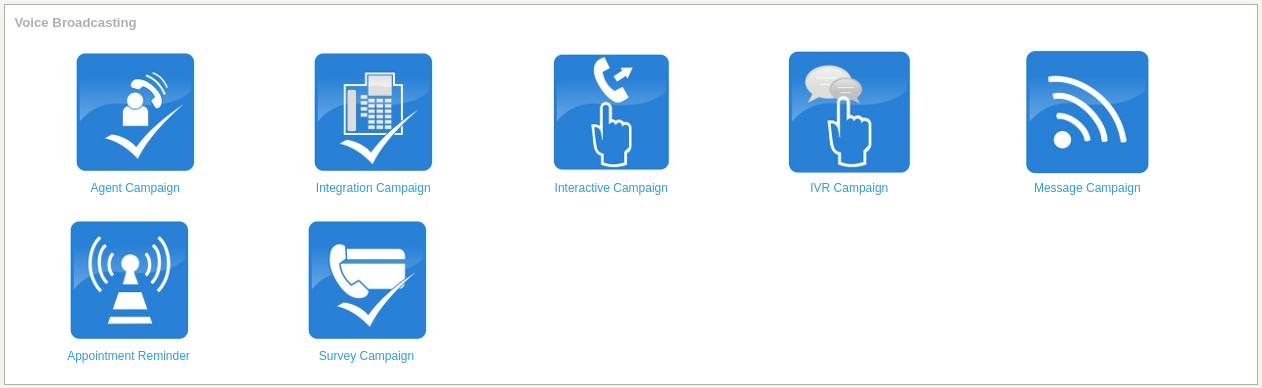
How to Use Voice Broadcasting in ICTBroadcast
ICTBroadcast runs voice campaigns by dialing every number in your contact group automatically. When recipients answer, it plays your pre-recorded message, or it can read text aloud with a built-in text-to-speech (TTS) engine.
1. Prepare Your Contact List
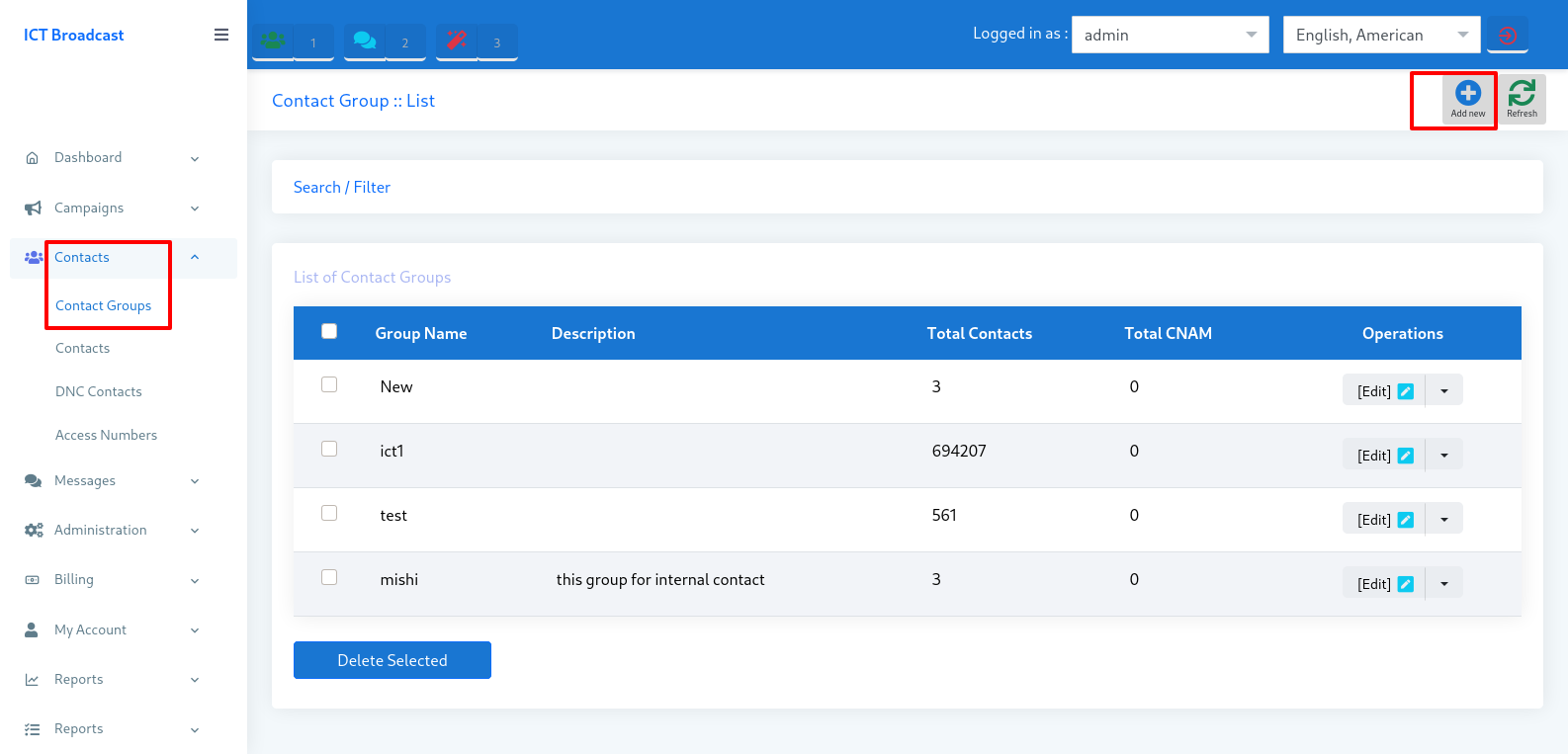
Start by preparing a contact list. You can create separate contact groups to target specific cities, provinces, or countries, and import numbers in bulk. ICTBroadcast also lets you upload a Do Not Call (DNC) list, so any number you add there is skipped automatically.
2. Prepare Your Message
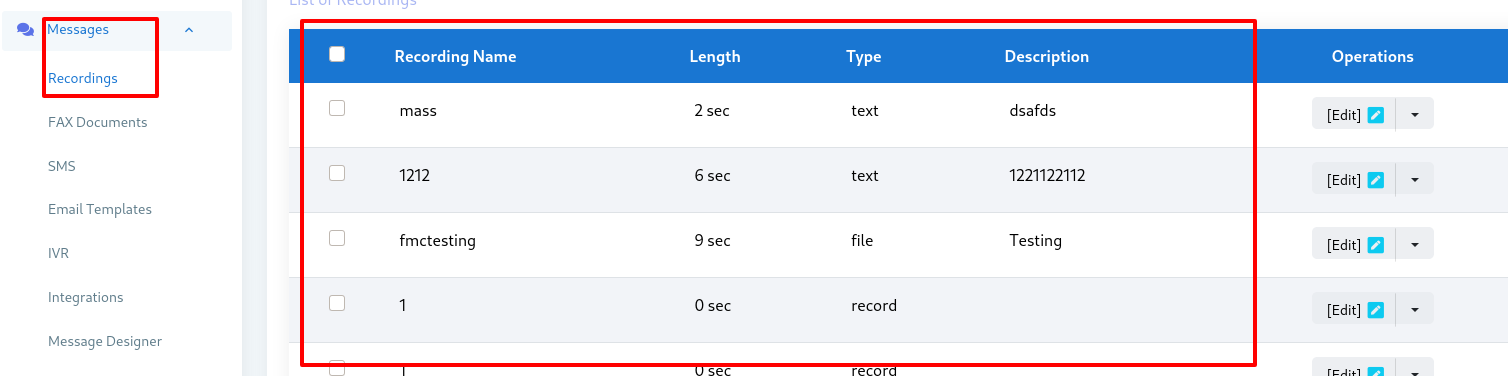
Upload your voice message in common formats like .wav or .mp3. You can record one with a tool like Windows Sound Recorder, or type your text and let the TTS engine convert it to speech.
3. Set Campaign Preferences
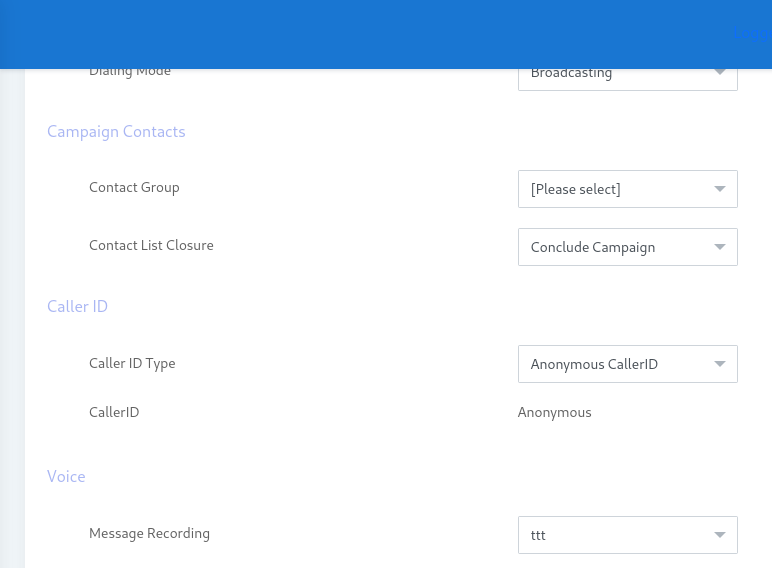
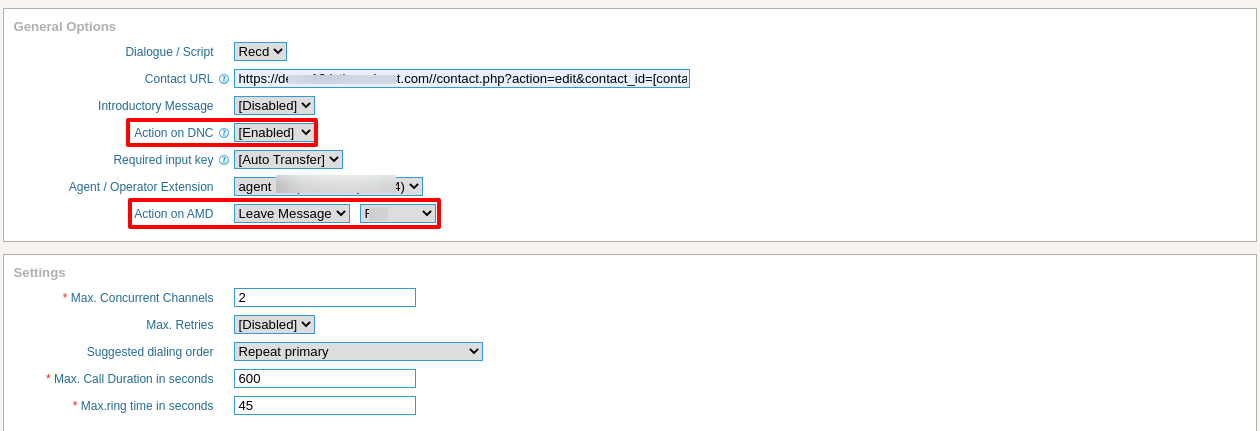
Before you launch, choose your campaign preferences. Decide whether to leave a message or hang up on answering machine detection (AMD), set how many times a call retries, and pick a custom caller ID.
4. Schedule the Campaign
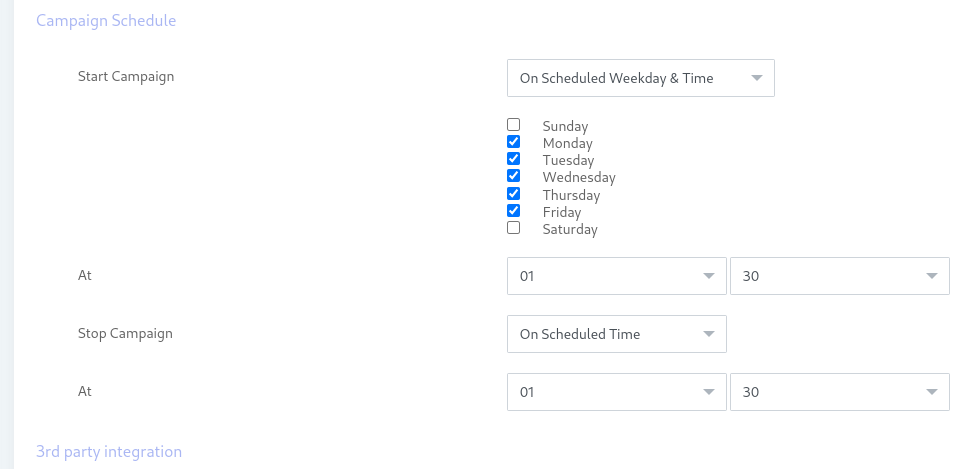
Once your list, voice message, and preferences are ready, you can broadcast right away or schedule it. Set a start date and time and an end date and time, and the system runs the campaign within that window.
Frequently Asked Questions
What is voice broadcasting software?
It’s software that dials a list of phone numbers automatically and plays a pre-recorded voice message when someone answers. It lets you reach thousands of people with one message instead of calling each person by hand.
What is answering machine detection (AMD)?
AMD tells the system whether a human or a machine answered. With ICTBroadcast you can play a separate message to voicemail or hang up, so machine pickups don’t waste your campaign.
What is a press-1 campaign?
A press-1 campaign plays your message and invites the listener to press 1 to connect to an agent or hear more. It’s a simple way to route interested contacts straight to your team.
Can I send voice messages without recording audio?
Yes. ICTBroadcast’s built-in text-to-speech engine turns typed text into natural-sounding speech, so you can launch a campaign without recording anything.
How do I avoid calling numbers that opted out?
Add those numbers to your Do Not Call (DNC) list. ICTBroadcast skips any number on the DNC list automatically, which keeps your campaigns compliant.
Start your voice broadcasting campaign today with the ICTBroadcast voice broadcasting system.