
Agent Panel Features
The ICTBroadcast agent panel is the single-screen workspace where agents handle every call. From the moment a call connects, agents can view the contact record, read the campaign script, update contact details, submit a disposition, schedule a follow-up, transfer the call, and manage their own status — all without leaving the panel.
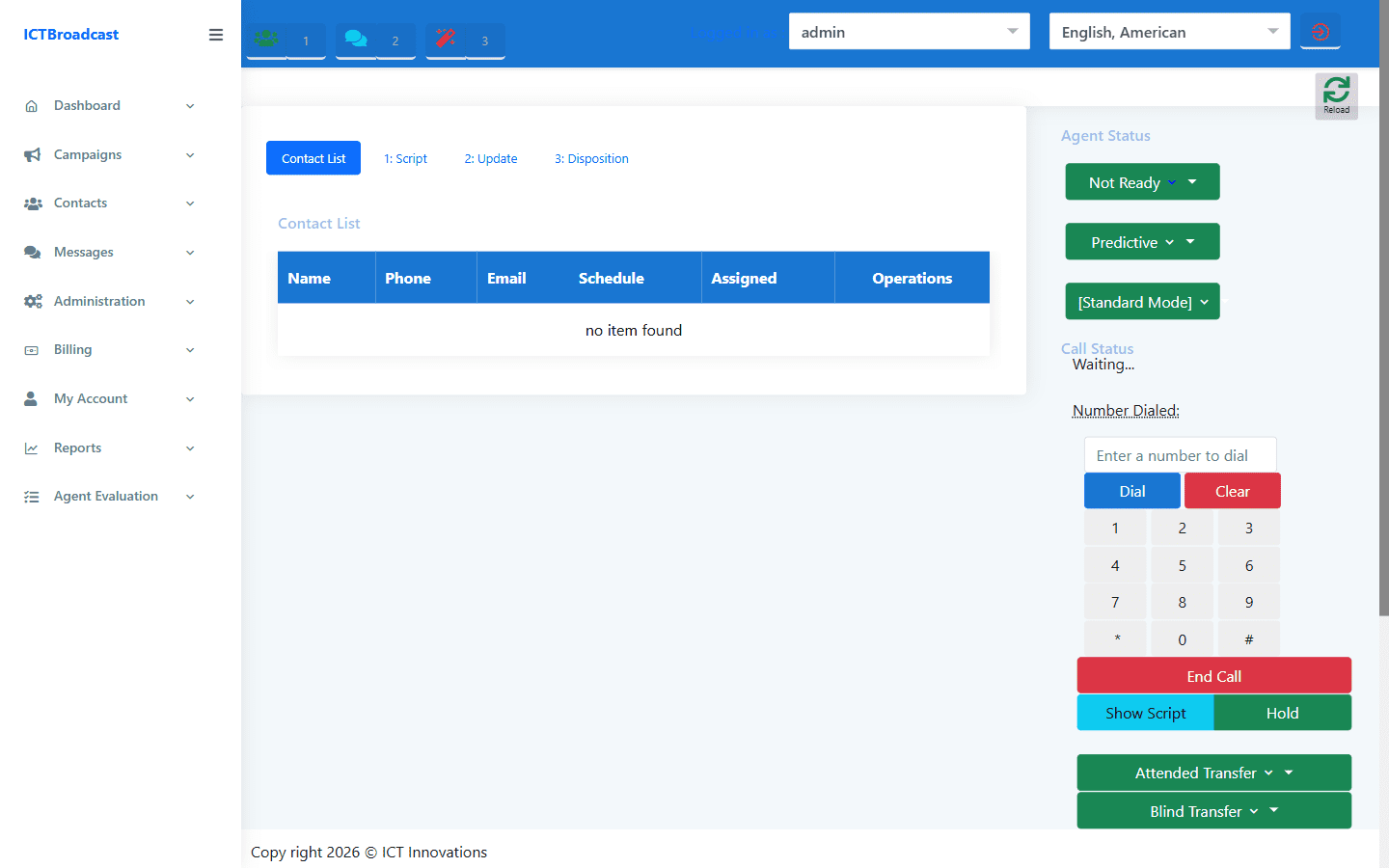
Contact List & Campaign Script
The Contact List tab shows all contacts assigned to the agent’s active campaign. The agent can see name, phone number, and contact status at a glance and click to dial.
The Script tab (Tab 1) displays the campaign script or dialogue alongside a Contact Type selector — agents choose whether to dial the Primary, Secondary, Tertiary, Quaternary, or Quinary phone number for the same contact, giving five-attempt coverage per record before moving on.
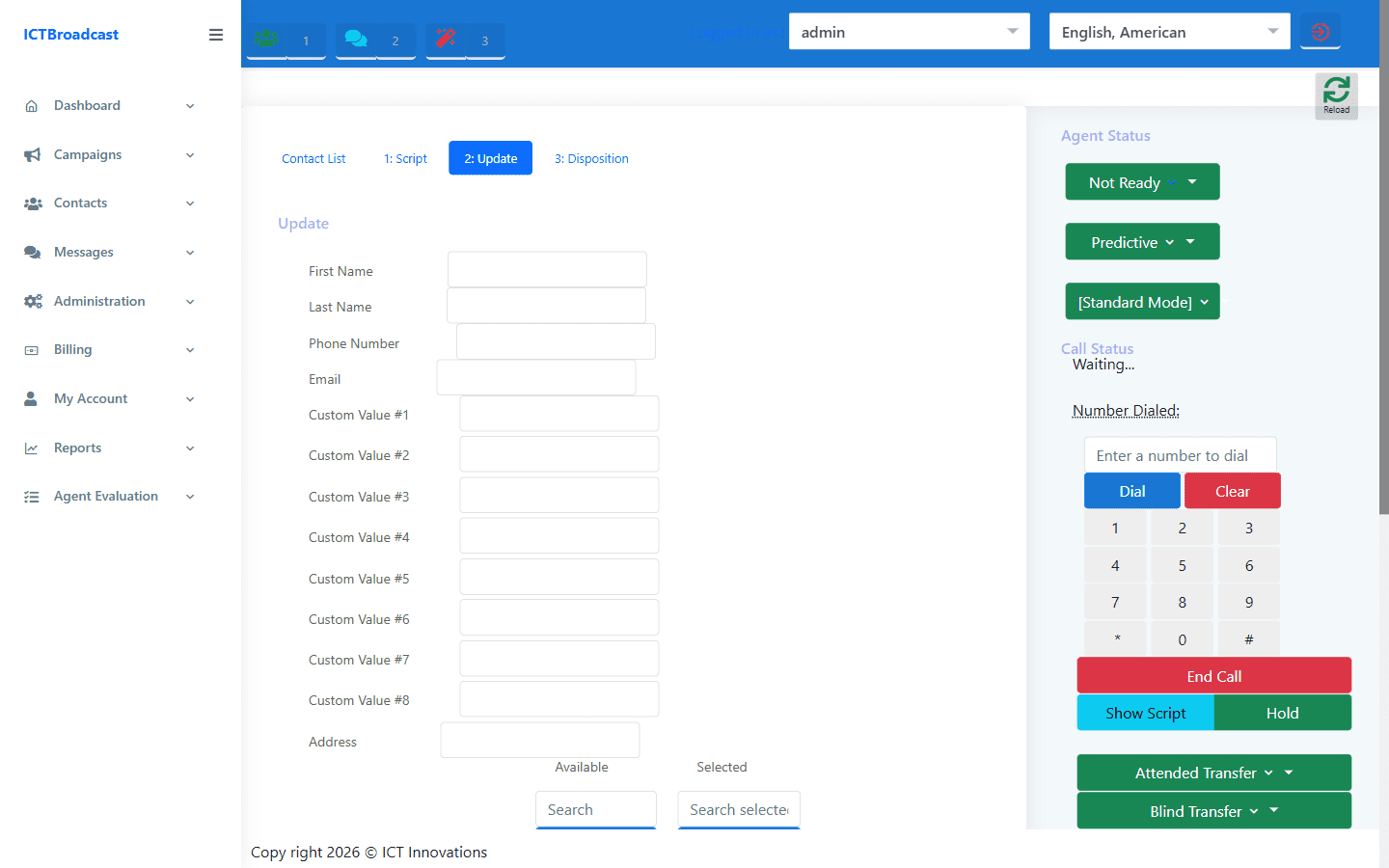
Update Contact During a Call (Tab 2)
While a call is live, the agent can open the Update tab to edit the contact record in real time: first name, last name, phone, email, address, and all eight Custom Value fields. Changes save immediately to the contact database so your lists stay accurate without a post-call cleanup process.
This is particularly valuable in healthcare, financial services, and field-sales workflows where contact details change frequently during the call itself.
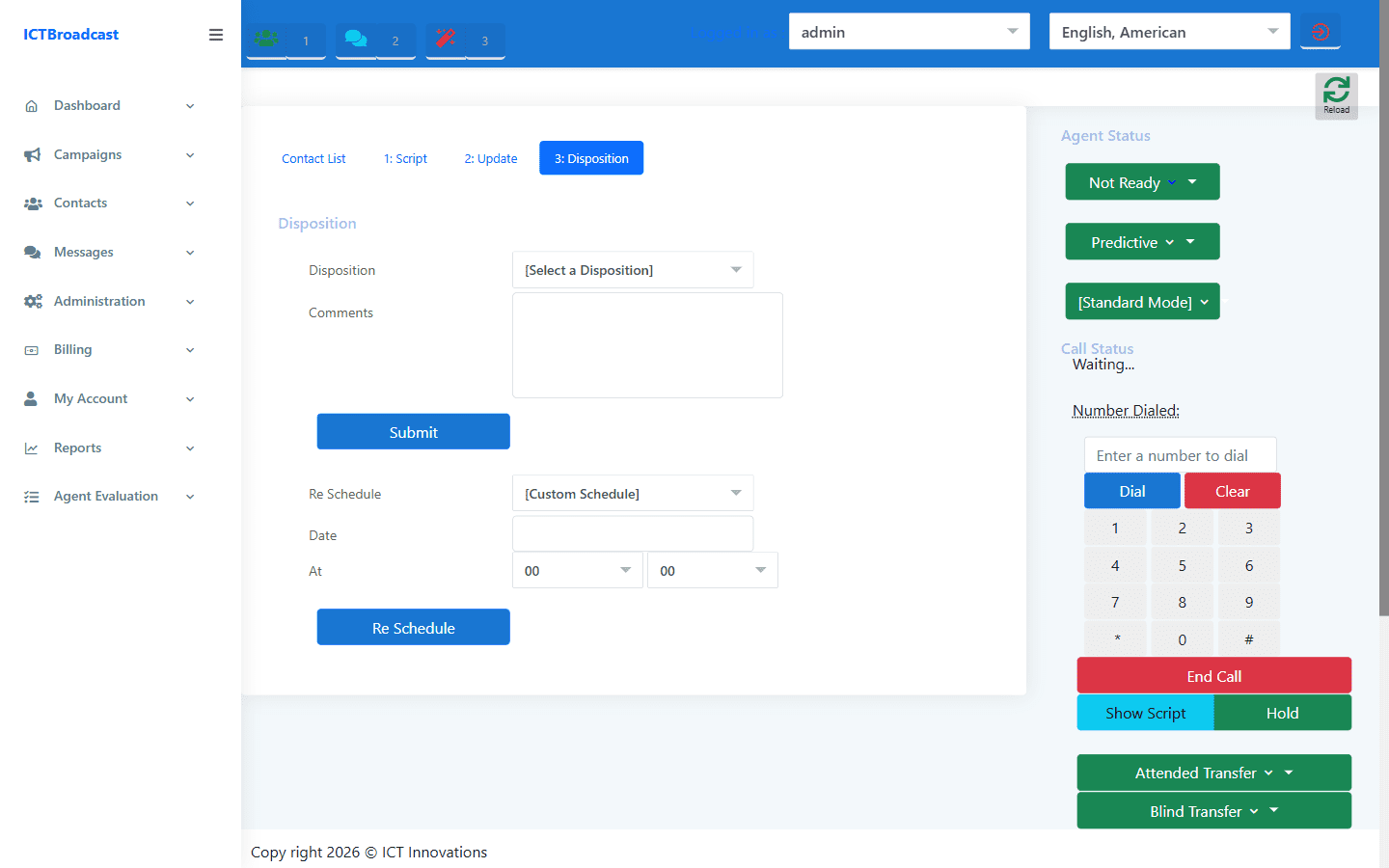
Disposition & Call Reschedule (Tab 3)
After a call ends, the agent selects a Disposition from the campaign’s configured outcome list (e.g., Interested, Callback, No Answer, Do Not Call) and adds a comment. Disposition data feeds the Disposition Report and Disposition Statistics report for supervisor analysis.
In the same tab, the ReSchedule section lets the agent set a follow-up time without opening a calendar:
- After 10 minutes
- After 30 minutes
- After 1 hour
- Next Day (same time)
- Next Week (same day and time)
- Custom date and time picker
The scheduled callback is assigned back to the same agent and reappears in their contact list at the specified time.
Attended & Blind Transfer
Agents can transfer calls to any other agent or skill group directly from the right panel:
- Attended Transfer — puts the caller on hold, allows the agent to speak with the receiving agent first to brief them, then completes the transfer. The caller hears hold music during the briefing.
- Blind Transfer — immediately transfers the caller to the target without any briefing. Faster, but no warm handoff.
Both transfer types show a live list of available agents and skill groups so the transferring agent can see who is free before initiating.
Multi-Party Bridge
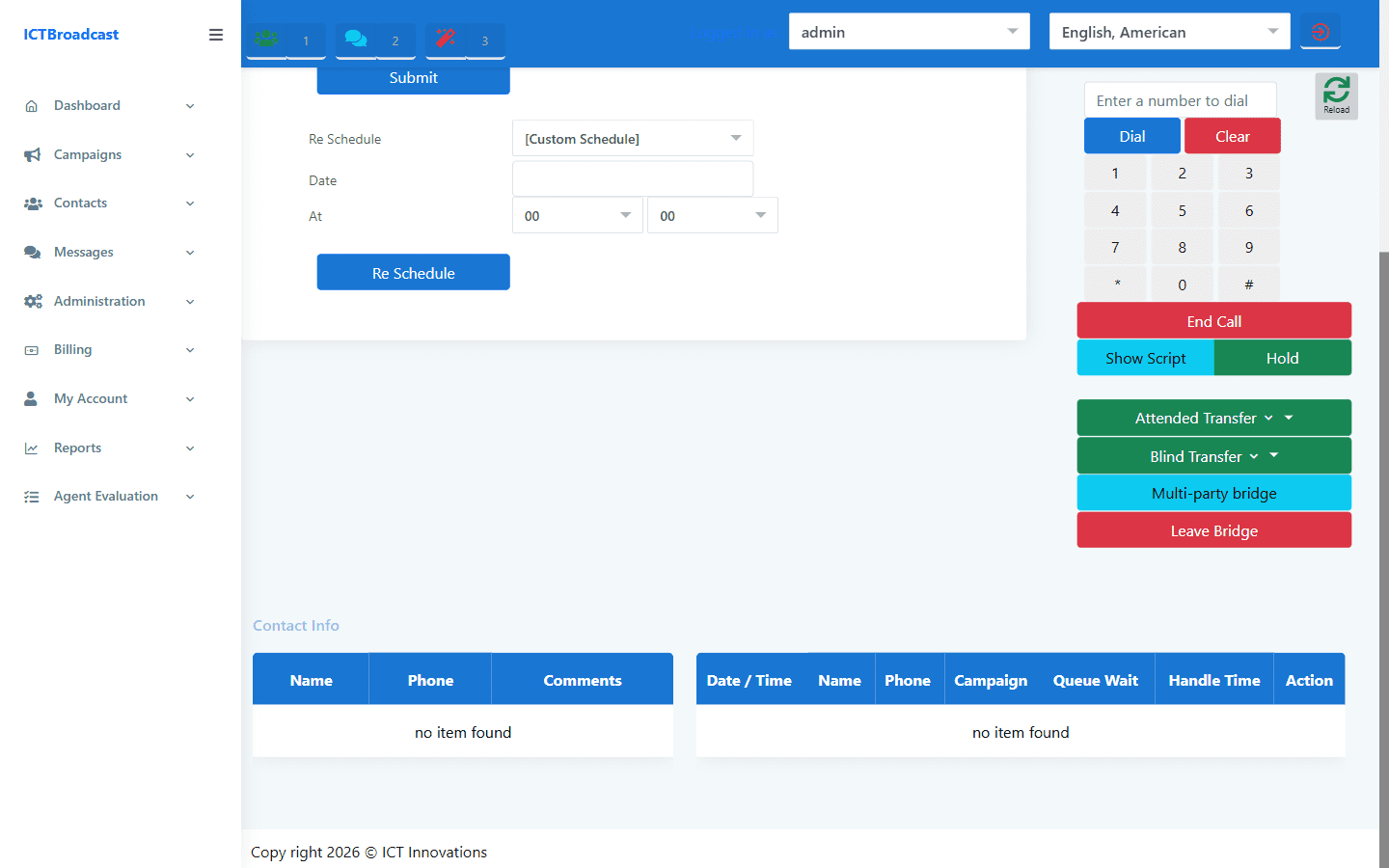
The Multi-party Bridge button adds a third participant to the active call, creating a three-way conference between the agent, the contact, and an internal or external number. This is useful for escalations where a specialist needs to join without the original agent hanging up.
Once the bridge is active, the agent can click Leave Bridge to exit the conference silently while the other two parties continue talking — the call does not drop. This is particularly useful when an agent escalates to a manager and then needs to free their line for the next contact.
Softphone / WebRTC Dialpad
Agents without a physical IP phone can use the built-in WebRTC softphone directly in the browser. The right panel shows a number input and a full dialpad for manual dialing. Call controls appear when a call is active: End Call and Hold buttons let the agent manage the call without a hardware phone.
The dialing mode selector in the same panel lets the agent switch between Manual, Predictive, Progressive, and Preview modes depending on the campaign type they are working.
Agent Status & Break Reasons
The status dropdown in the right panel lets agents control their own availability:
- Ready — agent is available and the system will deliver the next call
- Not Ready — agent pauses delivery without logging out
- Break (Away) — away from desk for unspecified reason
- Break (Lunch) — on lunch break
- Break (Meeting) — in a meeting
Supervisors see all of these statuses in the Live Statistics dashboard along with how long each agent has been in the current state. Break Reason data is also captured in the Disposition Statistics report — including average break time per agent — so you can monitor adherence to schedule.
Call History & Next Contact
The Call History table inside the agent panel shows the selected contact’s previous interactions: date and time, which campaign the call was part of, queue wait time, and handle time. This gives the agent immediate context before speaking — no separate CRM lookup required.
The Next Contact button advances to the next contact in the queue, and Retry redials the current contact. Both buttons are one-click so agents don’t need to navigate away from the panel between calls.
Frequently Asked Questions
Does the agent panel work in any browser?
Yes. The agent panel is web-based and works in any modern browser. The WebRTC softphone requires a browser that supports WebRTC (Chrome, Firefox, Edge). For agents using a hardware IP phone, WebRTC is not required.
Can agents see calls from multiple campaigns at once?
Each agent session is associated with one active campaign at a time. Agents switch campaigns via the campaign selector in the panel.
How does the reschedule callback reach the same agent?
The rescheduled contact is flagged with the agent’s ID. When the scheduled time arrives, ICTBroadcast delivers that contact to the same agent’s queue first before distributing to other agents.
What is the difference between Leave Bridge and End Call?
Leave Bridge exits the agent from a three-way conference while keeping the other two parties connected. End Call terminates the entire call and disconnects all parties.
Can supervisors monitor agent calls live?
Yes. Supervisors can see agent status in real time via Reports → Live Statistics and can force-logout any agent session remotely if needed.